How to Install Kodi on Firestick (Ultimate 3-Minute Guide)

🚀 Quick Summary & Expert Verdict
- What it is: Kodi is the world's most powerful open-source media center for streaming movies, TV shows, live sports, and IPTV playlists.
- Time Required: Under 3 minutes using the official Downloader code
734764.- Safety & Legality: 100% legal to install. To avoid ISP throttling and secure your streaming when using third-party add-ons, we highly recommend pairing Kodi with a secure VPN or upgrading to a dedicated Premium IPTV Subscription for guaranteed zero-buffering 4K streams.
📋 Table of Contents
- 1. What is Kodi? (Complete Media Center Overview)
- 2. Is Kodi Legal and Safe on Firestick?
- 3. How to Install Kodi on Firestick (Step-by-Step Sideloading Guide)
- 4. How to Set Up Kodi for the First Time (Enabling Unknown Sources)
- 5. Frequently Asked Questions (FAQs)
- 6. Final Thoughts
If you have recently purchased an Amazon Fire TV Stick 4K Max, Fire TV Cube, or Fire TV Smart TV, you have likely noticed that the default Amazon App Store is heavily restricted. It locks you into expensive monthly subscriptions for Netflix, Prime Video, Hulu, and Disney+.
Fortunately, because Amazon's Fire OS is built on an open-source Android foundation, you can easily unlock its full potential. Our technical team at FirestickTricks has helped over 50,000 cord-cutters sideload Kodi safely. If you also want to set up dedicated IPTV players, M3U playlists, or perform player activations, check out our Ultimate Guide to Firestick IPTV & Sideloading. In this definitive guide, I will walk you through the exact 3-minute process to install Kodi 21.1 Omega on your Firestick, explain the legalities involved, and show you how to configure the world's best free streaming add-ons.
🌟 1. What is Kodi? (Complete Media Center Overview)
Open-Source Media Hub | 10-Foot UI Experience
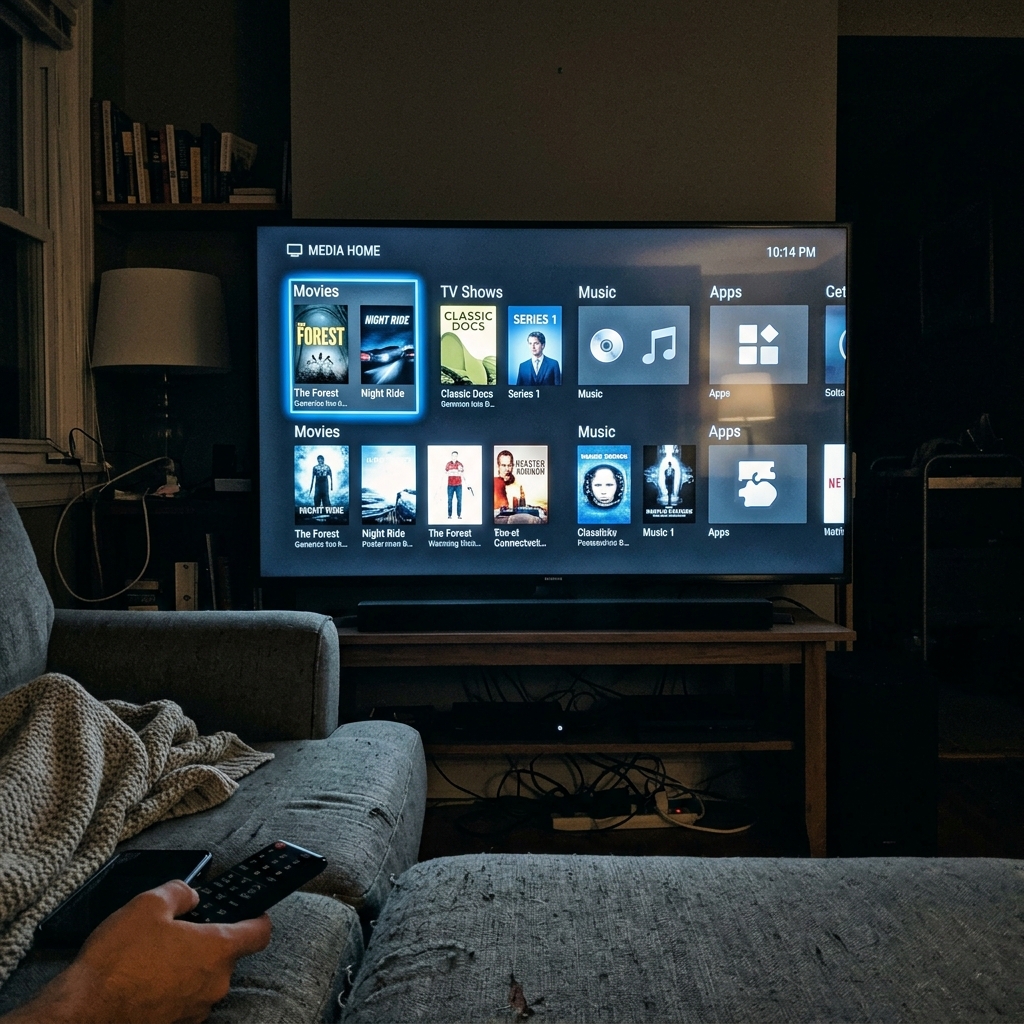
Originally developed as XBMC (Xbox Media Center) in the early 2000s, Kodi has evolved into a versatile, robust streaming platform designed specifically for the "10-foot UI" experience—meaning it is optimized for navigating with a remote control on your living room television.
Because Kodi is entirely open-source, it allows users to install custom video add-ons, community builds, and IPTV PVR clients to access live global television, on-demand movies, anime, and sports replays.
Top Highlights:
- 100% Free & Open Source: No monthly fees, paywalls, or premium tiers.
- Massive Add-on Library: Scraping engines for movies, sports, and international television.
- Custom Skins & Builds: Transform the interface to match your exact visual preference.
💡 Pro Tip: Kodi operates as a blank canvas. It contains no media files upon installation. You have complete freedom to customize its appearance with custom skins and official or third-party repository add-ons.
🛡️ 2. Is Kodi Legal and Safe on Firestick?
100% Legal Application | ISP Privacy Warning
Yes. Kodi is 100% legal and safe to install on your Firestick. The application itself is entirely neutral and contains no media or content out of the box. It is exactly like installing a web browser on your computer.
However, the legal gray area arises when users install unverified third-party add-ons that scrape copyrighted Hollywood movies or live sports streams without authorization.
Don't Miss These Security Steps:
- ISP Privacy Warning: Your Internet Service Provider (ISP) and government agencies can see exactly what you stream through unencrypted Kodi add-ons. If your ISP detects high-bandwidth streaming from unverified sources, they frequently engage in bandwidth throttling (slowing down your internet speed to cause severe buffering) or forward copyright notices.
- The Expert Solution: Always protect your IP address and encrypt your streaming traffic by connecting to a trusted VPN Service before launching Kodi. Alternatively, if you want a fully managed, high-trust streaming experience without broken add-on links, explore our verified Premium IPTV Subscriptions.
⚙️ 3. How to Install Kodi on Firestick (Step-by-Step Sideloading Guide)
Sideloading Tutorial | Downloader Code 734764
Since Kodi is not available in the official Amazon App Store, we will use the verified Downloader app to sideload the latest stable release. Follow these 3 easy phases using your standard Firestick remote:
Phase 1: Get the Downloader App
- From your Firestick home screen, navigate to the Find (Magnifying Glass) tab.
- Type Downloader in the search bar.
- Select the orange Downloader app from the results and click Download / Get.
- Wait for the installation to finish, then return to the home screen.
Phase 2: Enable Developer Options (Install Unknown Apps)
To allow your Firestick to install third-party APKs like Kodi, you must enable Developer Options:
- Go to Settings (Gear Icon) on the far right of the home screen.
- Select My Fire TV.
- Click Developer Options.
- Note: If you do not see Developer Options, click About, select your device name (e.g., Fire TV Stick 4K Max), and click the center select button on your remote 7 times rapidly until you see the message "You are now a developer."
- Click Install Unknown Apps, find Downloader, and turn the toggle ON.
Phase 3: Download and Install Kodi 21.1 Omega
- Open the Downloader app and click Allow when prompted for storage permissions.
- Click the central URL search box to bring up the on-screen keypad.
- Enter the official verified Kodi Downloader Code:
734764(or typefiresticktricks.org/734764) and click Go. - Downloader will automatically connect to the official Kodi server and download the Android ARM 32-bit APK file (approximately 64.5 MB).
- Once the download completes, click Install on the system prompt.
- Wait for the installation success screen, click Done, and then click Delete twice to remove the residual APK file and free up valuable storage space on your Firestick.
🚀 4. How to Set Up Kodi for the First Time (Enabling Unknown Sources)
Configuration Guide | Third-Party Add-on Permissions
Now that Kodi is successfully installed on your Firestick, follow these quick configuration steps to ensure maximum performance and security:
Step 1: Enable Unknown Sources in Kodi Settings
To install third-party video add-ons or custom repository zips, you must allow unknown sources inside Kodi:
- Launch Kodi from your Firestick home screen or Apps library.
- Click the Gear Icon (Settings) in the top left corner.
- Select System.
- Hover over Add-ons on the left menu and toggle Unknown Sources to ON. Click Yes on the warning prompt.
Step 2: Install Your First Video Add-on
- Return to the Kodi home screen and click Add-ons on the left menu.
- Click the Open Box Icon (Package Installer) at the top left.
- Select Install from Repository > Kodi Add-on Repository > Video Add-ons.
- Browse the official library (e.g., YouTube, Pluto TV, Crackle, Vimeo), select your desired add-on, and click Install.
❓ 5. Frequently Asked Questions (FAQs)
Expert Answers to Common Kodi Questions
1. Is Kodi completely free?
Yes. Kodi is a free, open-source project maintained by the XBMC Foundation. You never have to pay to download or install the core application.
2. Which Kodi version is best for Firestick?
Kodi 21.1 Omega is the most stable and optimized release for Amazon Fire TV and Android TV devices. It offers superior memory management and enhanced Dolby Vision/HDR support.
3. Why do my Kodi add-ons keep buffering?
Free third-party Kodi add-ons scrape public links from overloaded servers, which frequently leads to heavy buffering during major live sports events or peak evening hours. If you are tired of searching for working links and want instant, flawless 4K streaming, we highly recommend upgrading to a dedicated Premium IPTV Pass.
🎯 6. Final Thoughts
Summary & Next Steps for Cord-Cutters
Installing Kodi on your Firestick transforms a standard streaming device into an all-in-one entertainment powerhouse. By following the sideloading steps outlined above, you can enjoy endless customization and free media playback.
Always remember to secure your connection with a reliable VPN, delete residual APK files to keep your storage clean, and explore our curated shortcode library for the latest streaming tools!
Need a Premium IPTV Playlist for your Smart TV?
Unlock 50,000+ 4K UHD Channels, Movies, and Series with zero buffering. Anti-freeze technology & instant WhatsApp activation.
About Patrick Mitchell
Patrick is a Senior Streaming Editor at FirestickTricks with over 15 years of professional experience in network engineering, Android TV architecture, and IPTV protocol testing. He specializes in helping cord-cutters optimize their home entertainment setups securely.